Rider Management
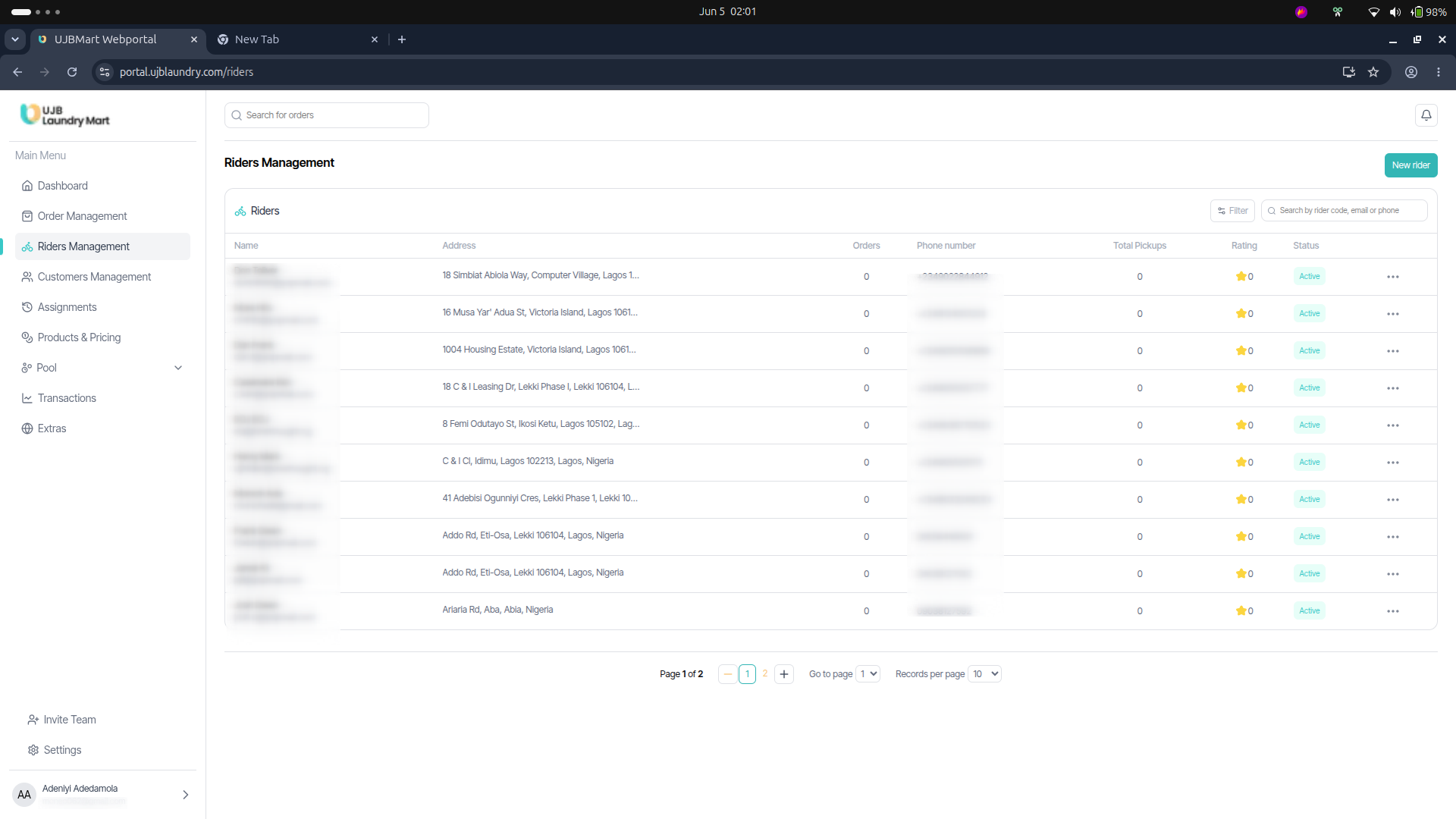
The Riders Management interface displays a holistic index of dispatch personnel paired with their real-time performance and system status metrics. If no riders are currently registered in the system, the portal displays a "No rider available" notification.
Onboarding & Creating a New Rider
To manually onboard a new dispatch agent into the system:
- Navigate to the Riders Management page from the main menu.
- Click the New Rider button located at the top-right corner of the interface.
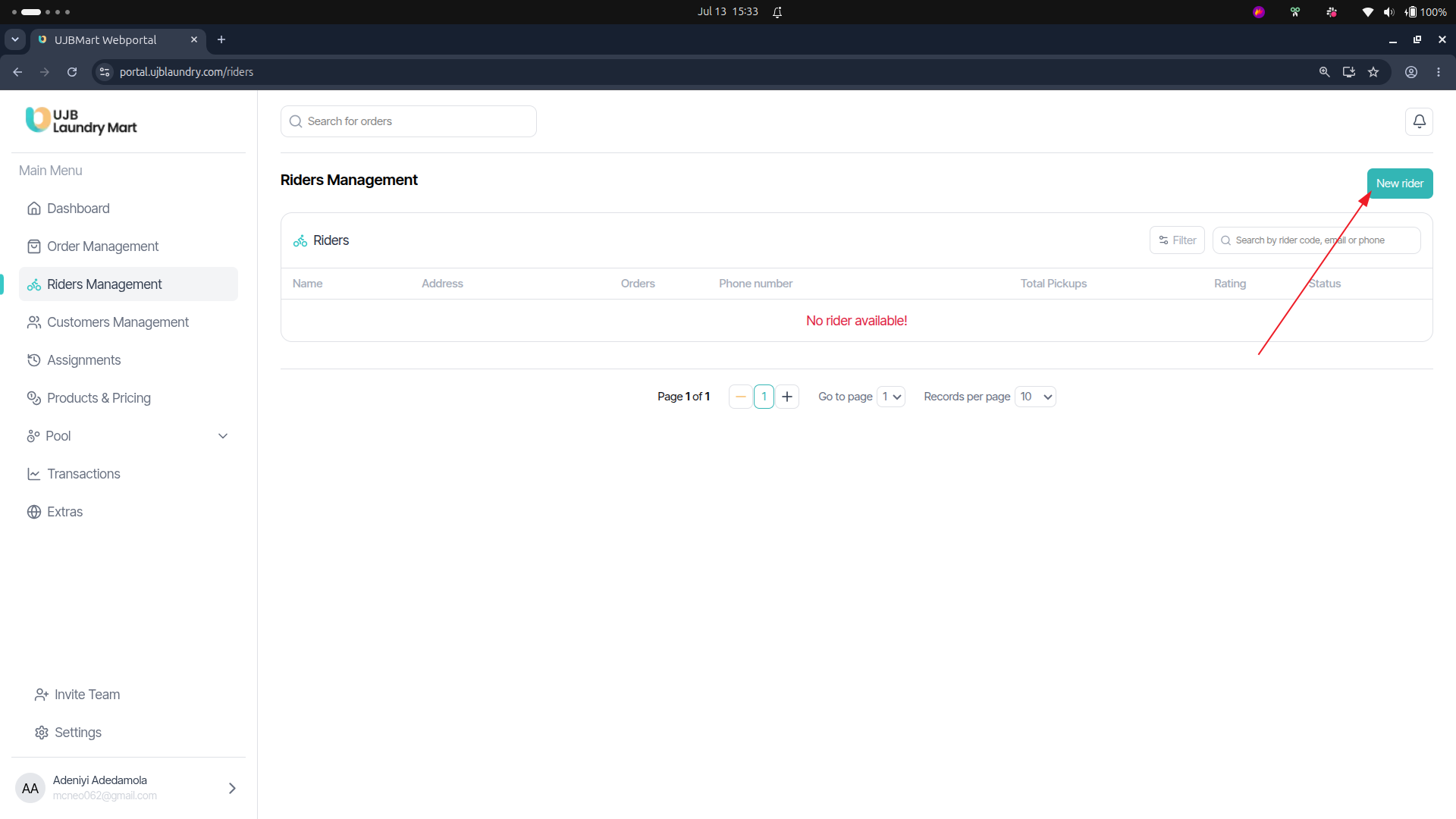
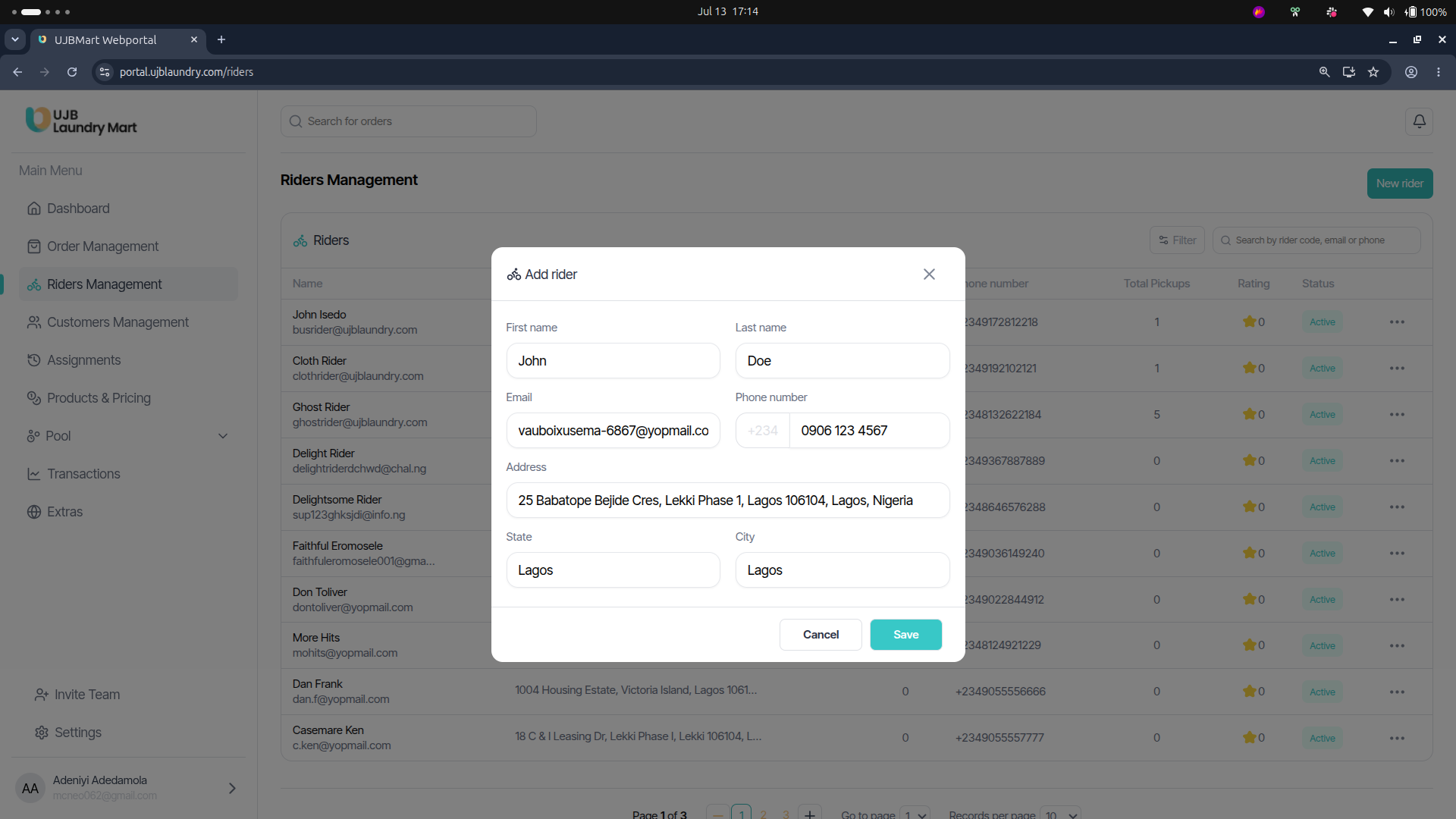
- A modal field titled Add Rider will pop up. Fill out the following required credentials:
- First Name & Last Name
- Email & Phone Number
- Address, State, and City
- Click Save.
Setting Up a Rider Profile
Once the basic contact info is saved, a secondary Create Profile modal will prompt you to define the rider's logistics variables:
- Once the basic contact info is saved, a secondary Create Profile modal will prompt you to define the rider's logistics variables:
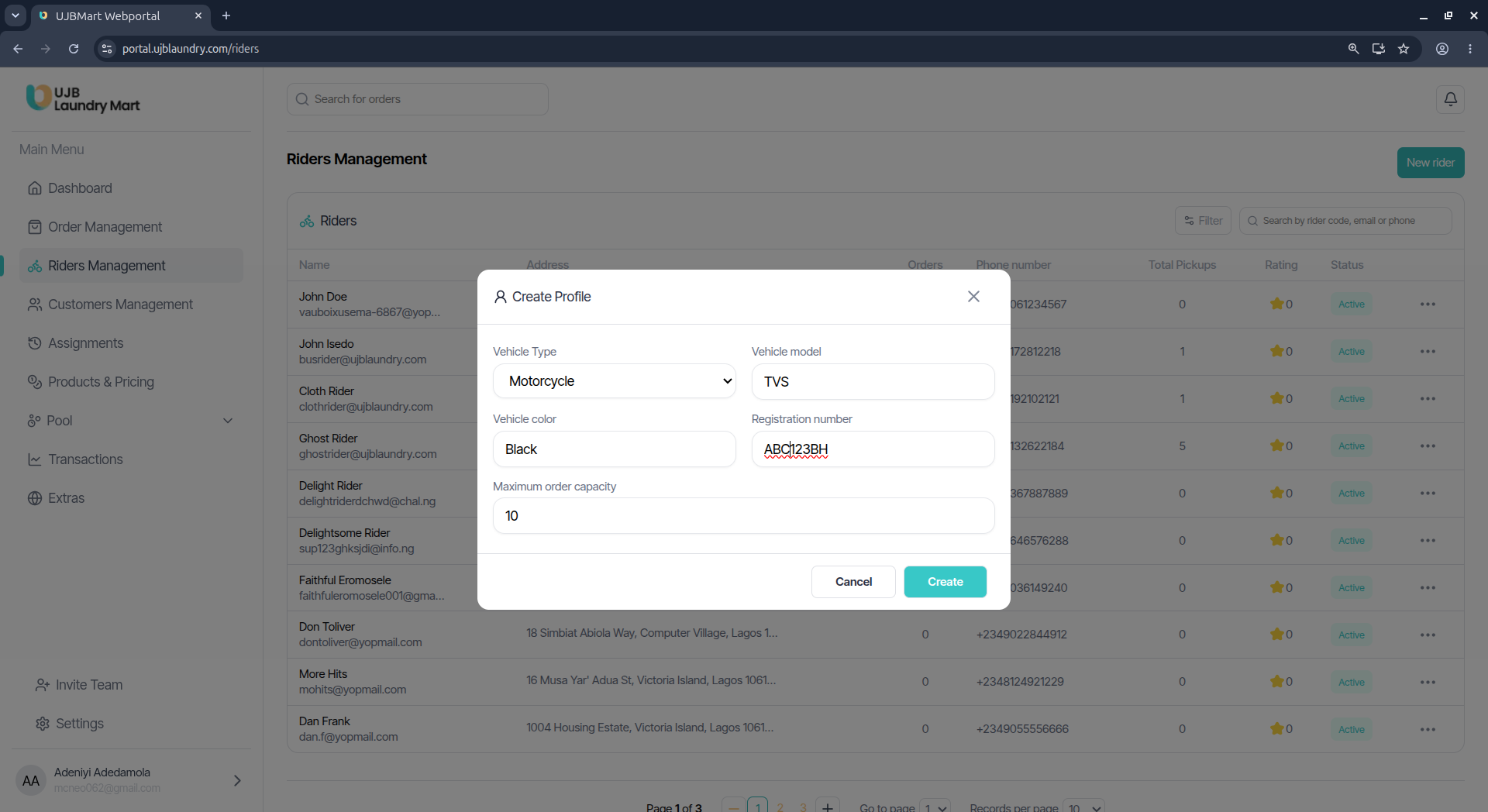
- Vehicle Type: Select the underlying vehicle platform from the dropdown menu (e.g., Motorcycle, Bicycle).
- Vehicle Model: Specify the manufacturer/model index (e.g., TVS).
- Vehicle Color: Enter the primary color of the vehicle (e.g., Black).
- Registration Number: Input the official legal license plate or fleet number (e.g., ABC123BH).
- Maximum Order Capacity: Define the maximum number of structural laundry bundles the vehicle can securely transport at one time (e.g., 10).
- Click Create to finalize the profile and add them to the active system roster.
Viewing Rider Details
Clicking the 3-dot action menu next to any rider's record and selecting View launches their comprehensive profile card. From this central overlay, you can inspect:
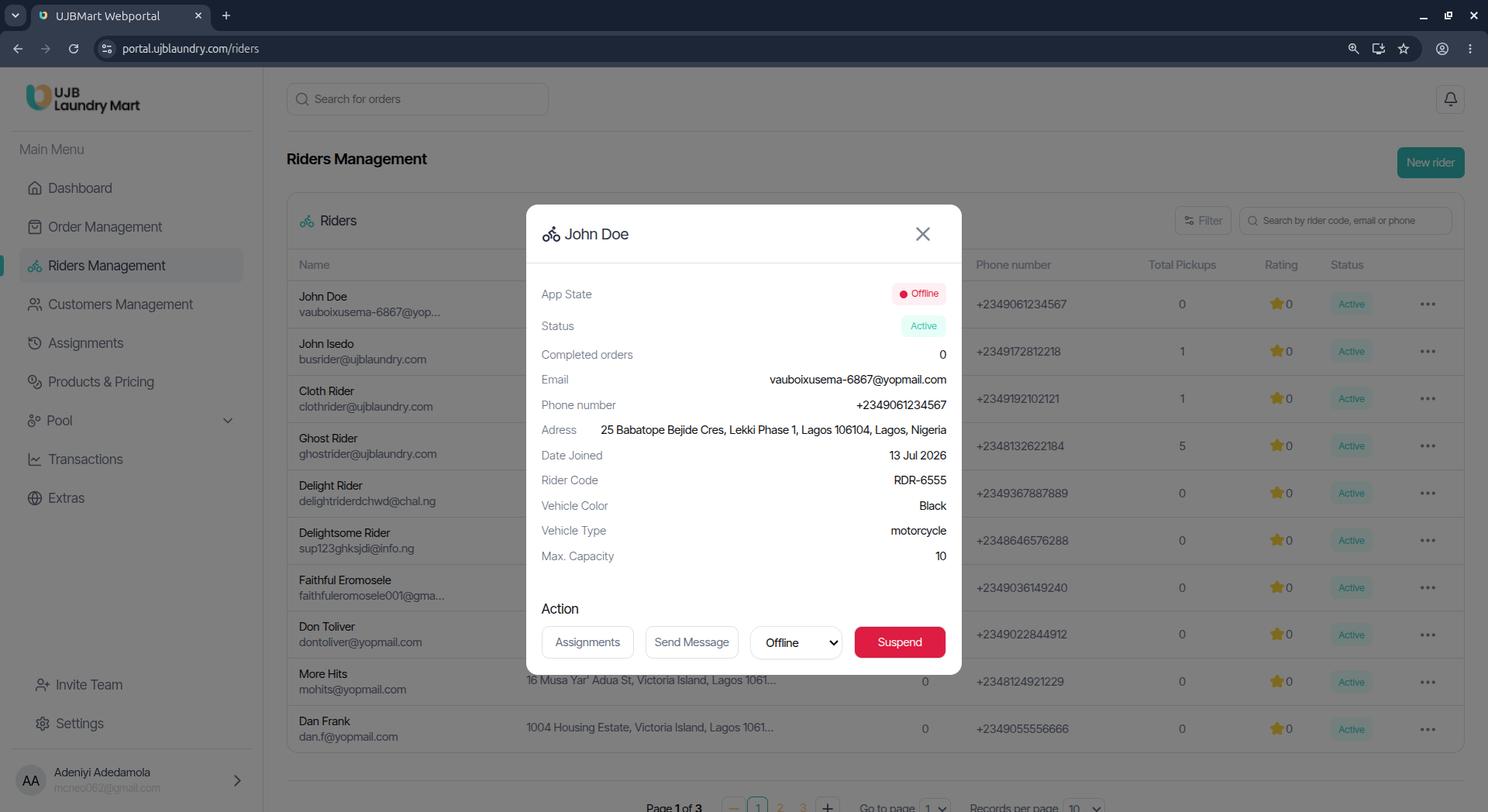
- App State & Status: Monitor real-time connectivity states (Online / Offline) and system standing (Active / Suspended).
- Performance Metrics: Review total Completed Orders, Date Joined, and their unique automated system Rider Code (e.g., RDR-6555).
- Assignments Log: Click the designated Assignments button at the bottom of the overlay to drill down into historical or current order delivery routes mapped to that rider.
Messaging Riders Directly
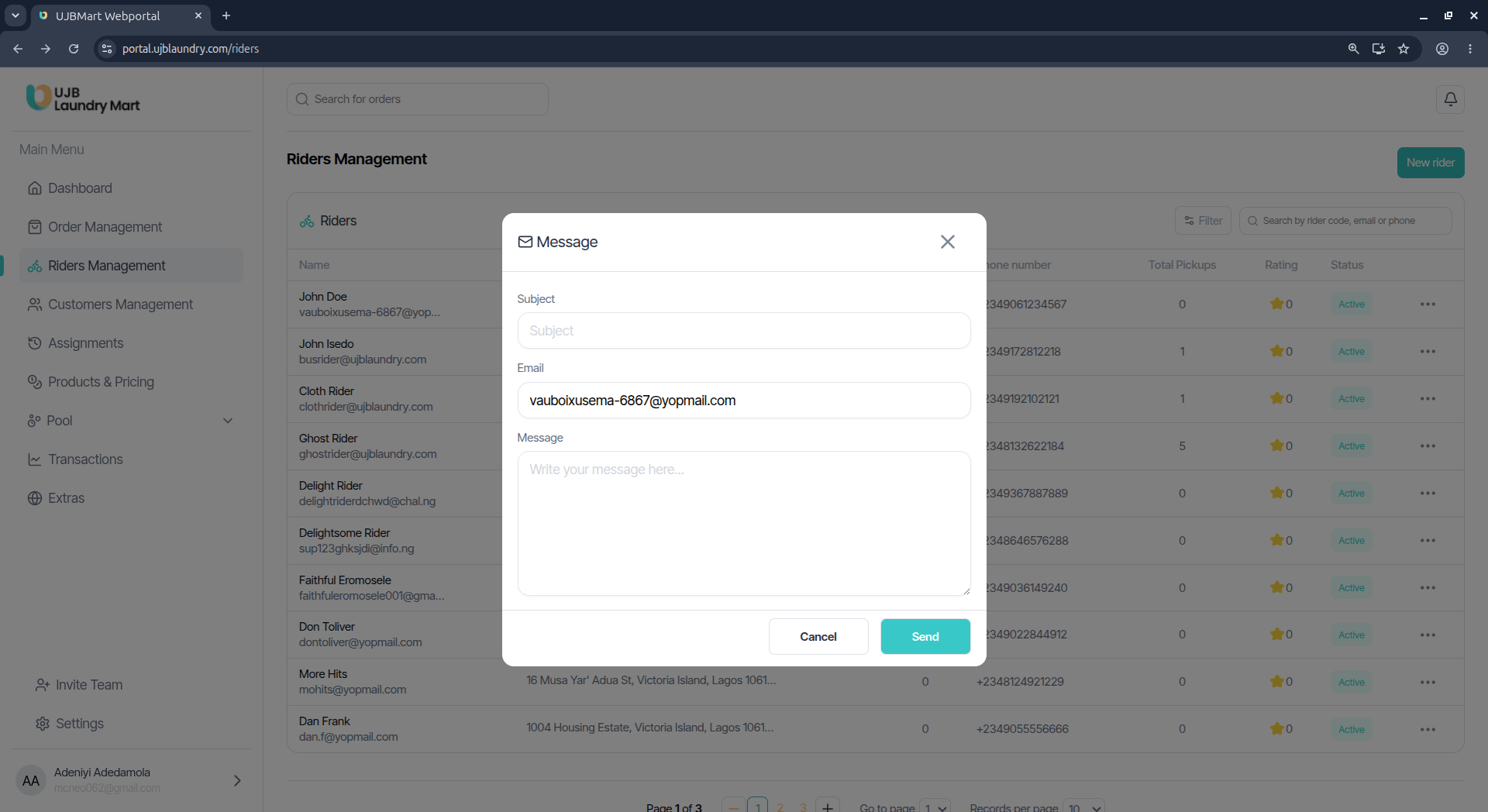
The portal allows direct communication with dispatchers via their registered email address:
- Open the rider's profile card using the 3-dot icon > View sequence.
- Click the Send Message action button.
- A Message modal will appear with the rider's destination Email pre-filled.
- Enter a clear Subject line, compose your text body in the Message box, and click Send.
Editing a Rider Profile
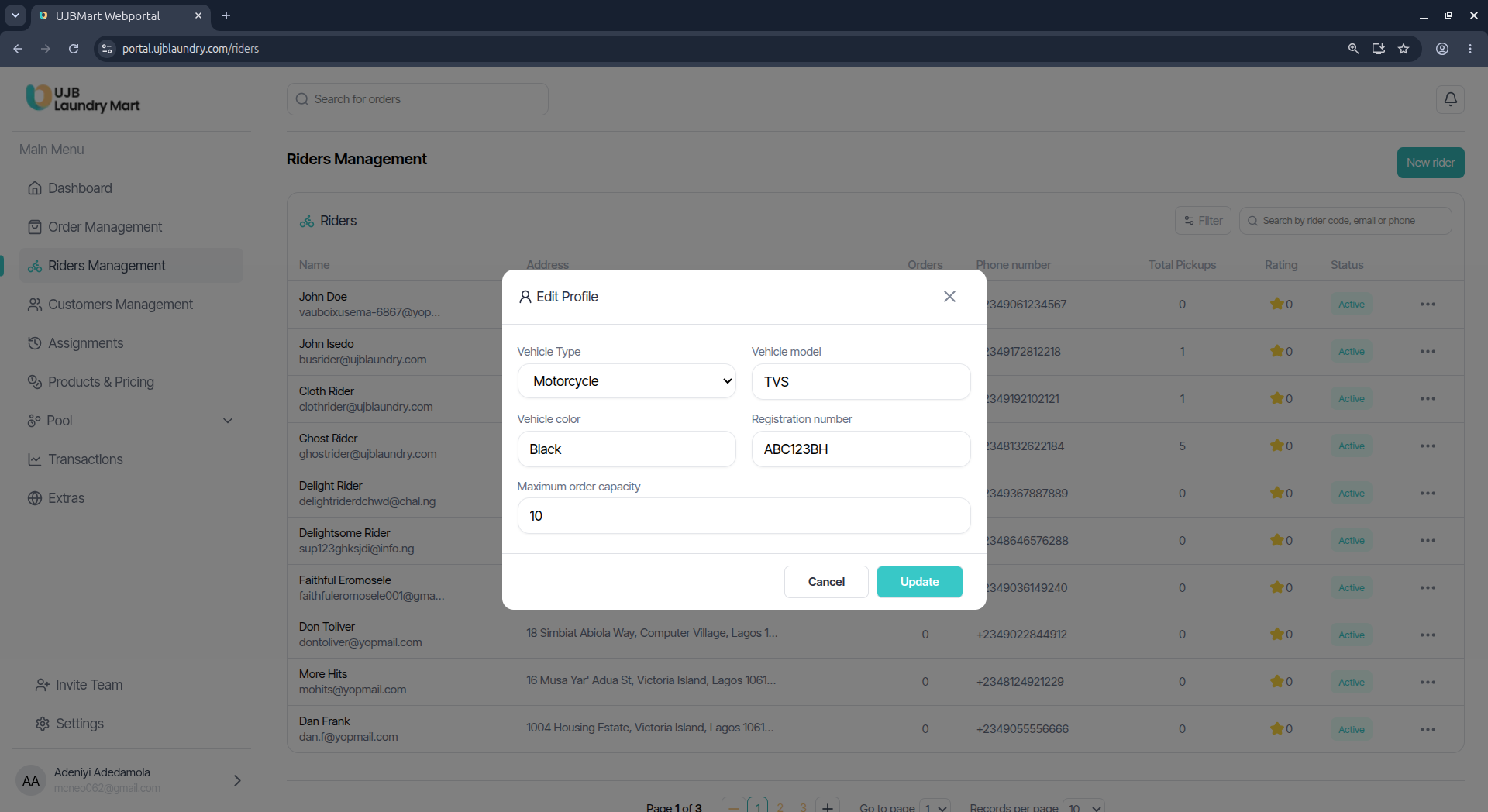
If a rider changes their vehicle or updates their personal info, their records can be modified at any time:
- Click the 3-dot action menu corresponding to the rider you want to modify.
- Select Edit Profile to bring up the R Edit Profile form.
- Adjust the necessary criteria (Vehicle Type, Model, Color, Registration Number, or Max Capacity) and click Update to save the changes.
Suspending a Rider
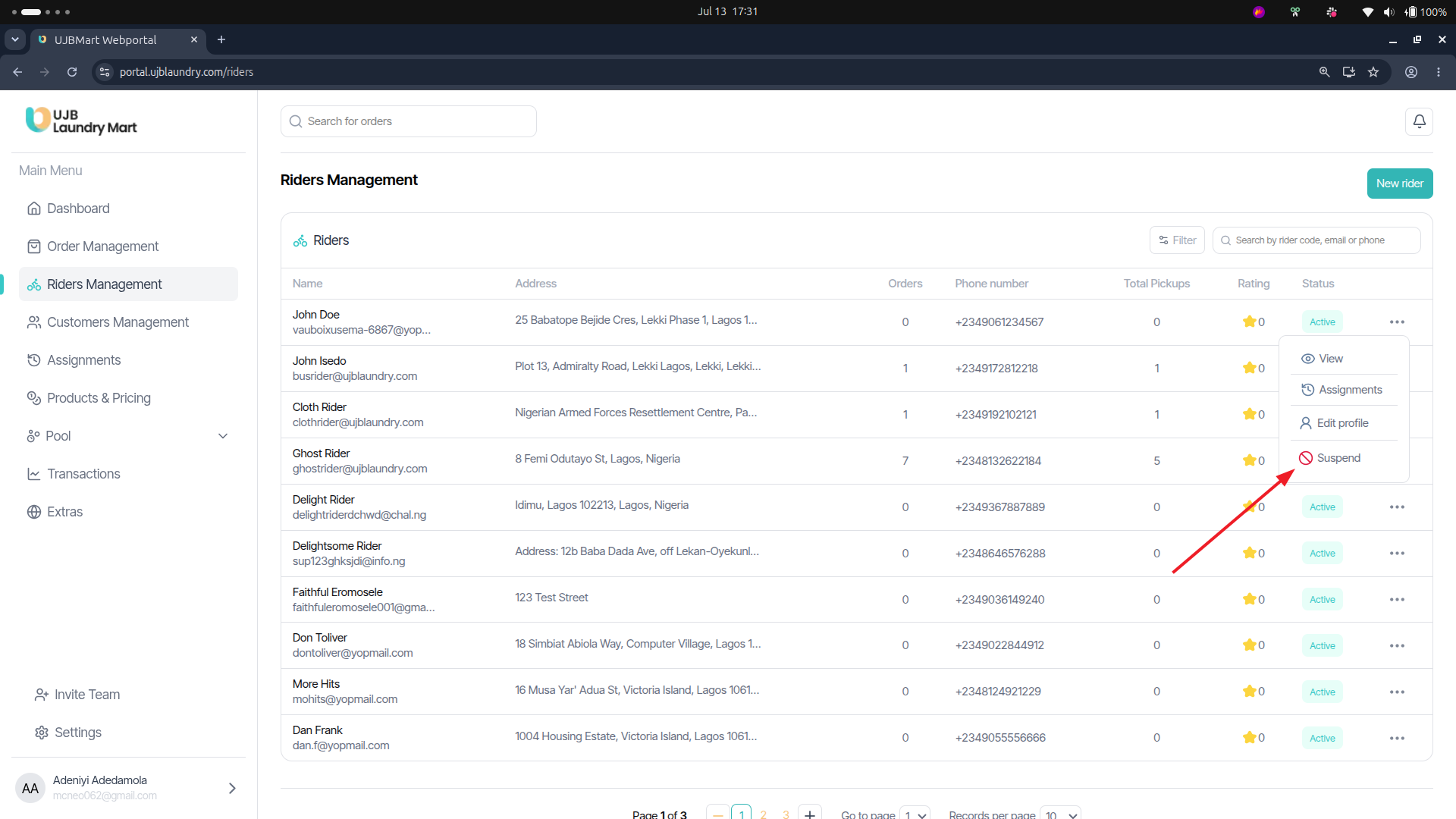
If a rider violates platform policies or needs to be temporarily benched from receiving automated pool assignments, you can quickly freeze their account:
- Method 1: Click the 3-dot action menu directly on the main Rider Management ledger row and select Suspend from the quick-actions dropdown list.
- Method 2: Open the rider's detail card via the View overlay and click the red Suspend button located at the bottom right corner.