Order Management
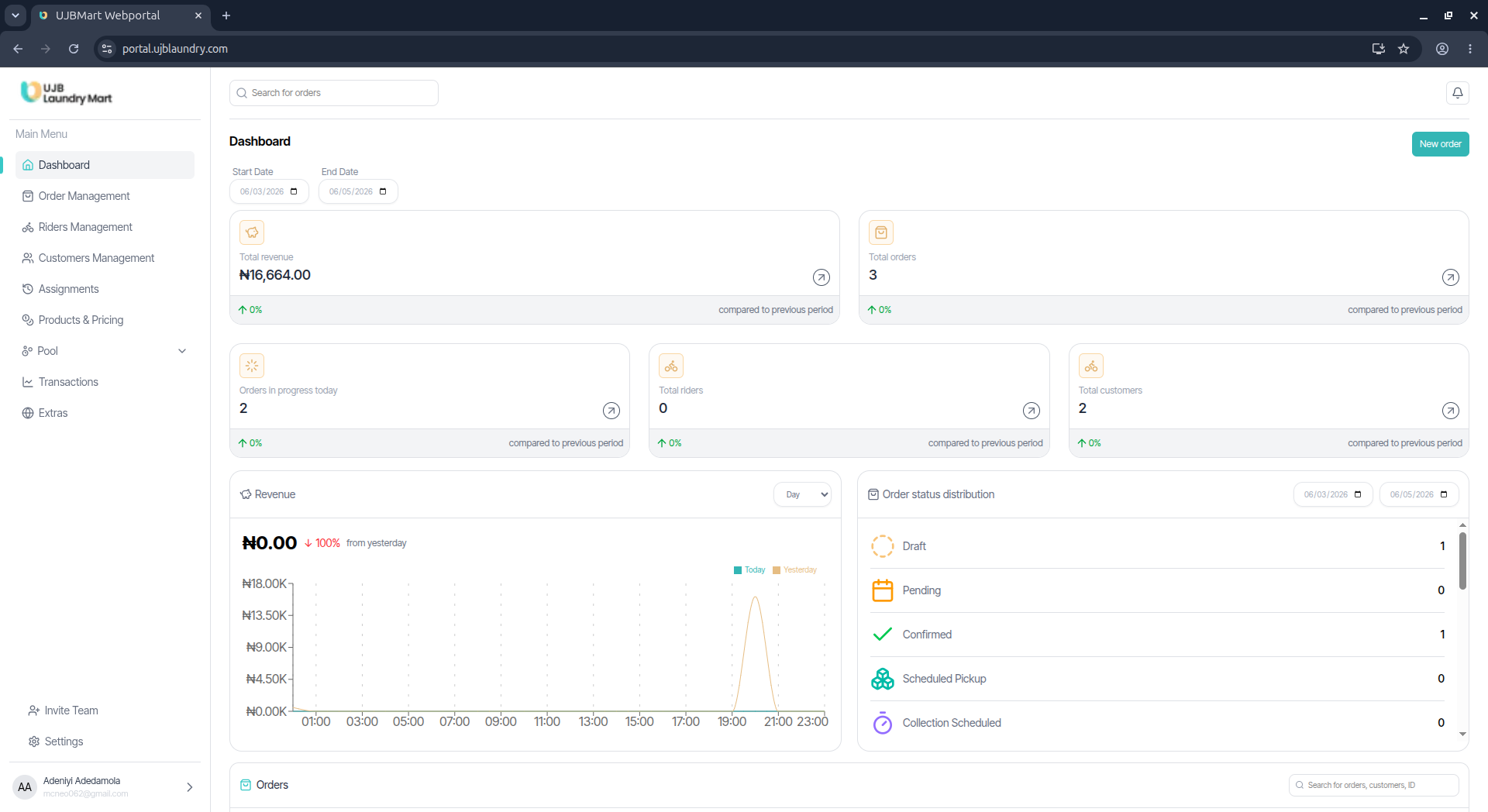
The Order Management module allows administrators to oversee, track, and manually intervene in the lifecycle of any customer request.
The Orders Table
The primary table logs crucial data vectors for every order:
- Order ID
- Customer Name & Phone Number
- Date & Order Source (e.g., Mobile App, Self Service)
- Assigned Rider Order Amount, Category, & Status
Creating and Modifying Orders
- Creating a New Order: Click the New Order button positioned at the top-right corner of the interface.
- Modifying Details: Click the 3-dot icon (action menu) next to any specific order row to reveal comprehensive order variables and timeline analytics.
Understanding Order Statuses & Timelines
Orders move dynamically through an automated and manual pipeline:
| Status State | DescriptionDraft |
|---|---|
| Draft | Generated exclusively when a user creates an order via the UJB Laundry mobile app but abandons it midway. Admins can view this state and use portal contact details to follow up or cancel the draft |
| Order Placed / Confirmed | The order is validated by the system or team. |
| Collection Scheduled / Pickup | A rider is designated to retrieve the laundry items from the client. |
| Items Collected / Tagged | Items have been retrieved and categorized at the processing facility. |
| Cleaning in Progress | The underlying laundry service is being executed. |
| Quality Check / In Storage | Cleaned items are inspected and securely shelved for dispatch. |
| Out for Delivery / Delivered | The dispatch phase to return items back to the customer. |
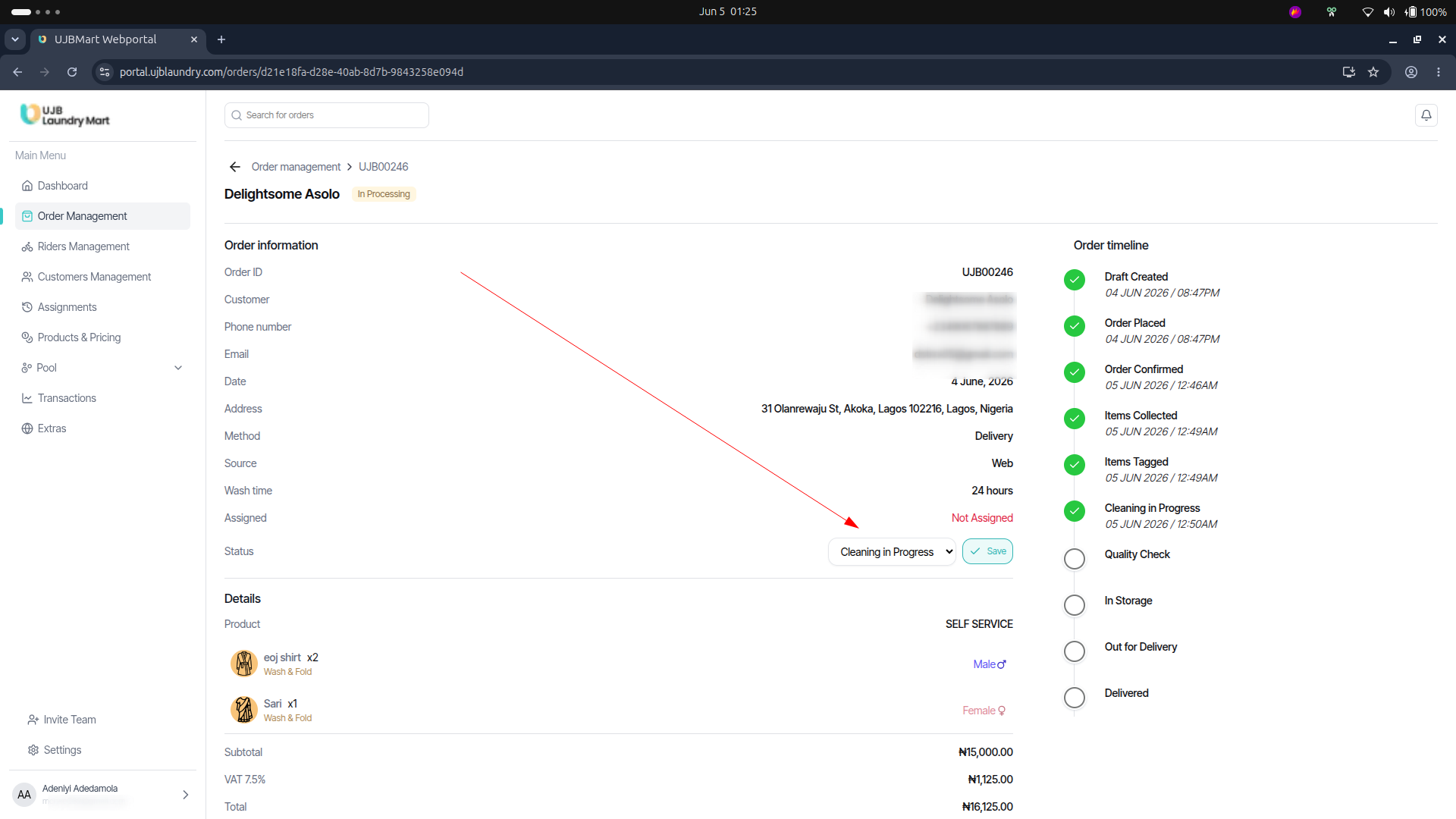
⚠️ Crucial Operational Rules:
- No Rollbacks: Once an order status is updated and passed to a subsequent stage, it cannot be reset or moved backward.
- Permission Gate: The privilege to manually alter or override order statuses is strictly restricted to Super Admins.