Customer Management
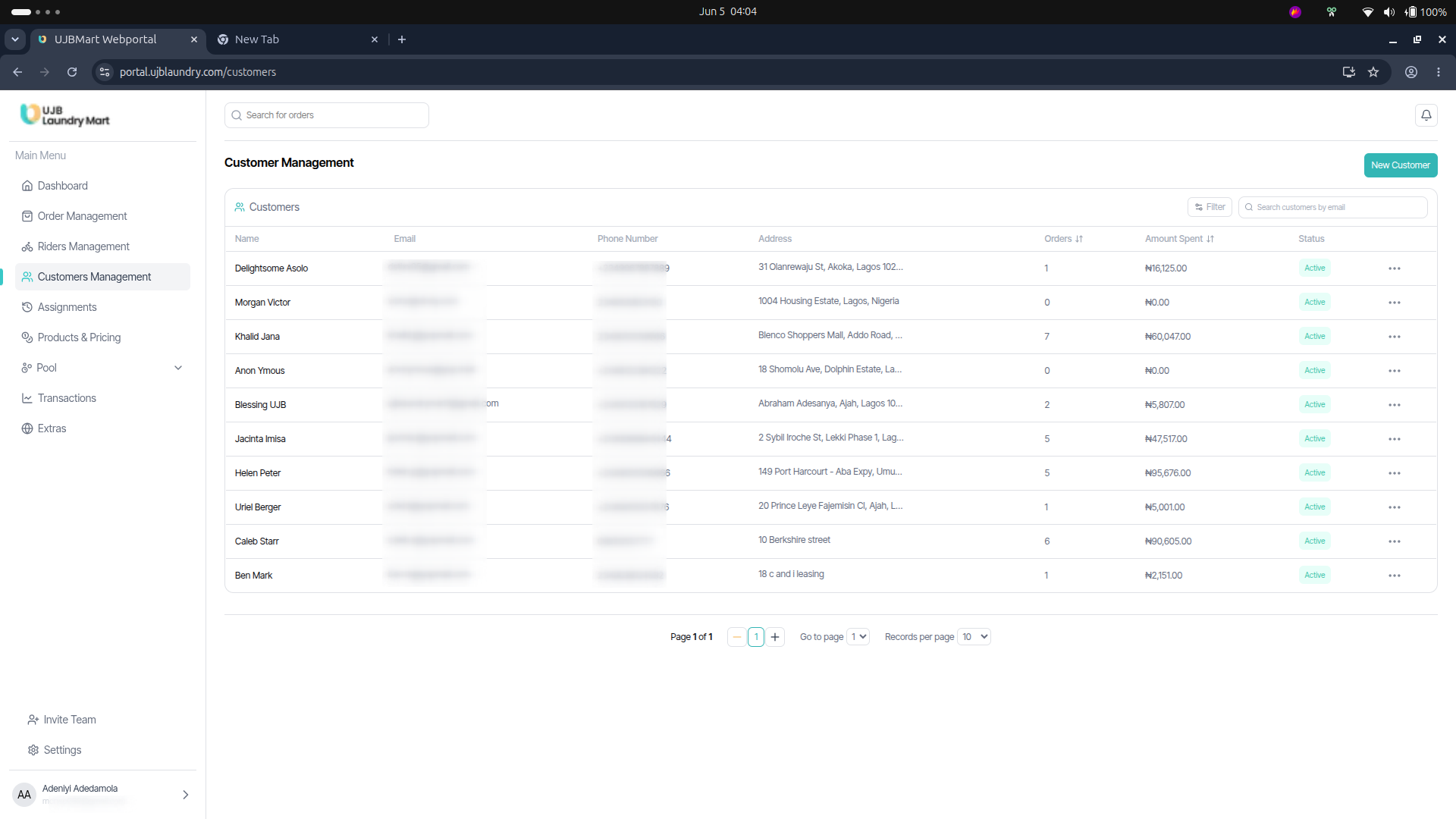
The Customer Management ledger tracks user interaction data to assist in customer support and targeted business operations.
The Customers Directory
The main directory dashboard logs vital data vectors for all clientele:
- Name
- Phone Number
- Address
- Orders (Cumulative order count)
- Amount Spent (A strategic financial data point used to drive tailored business metrics and loyalty programs)
- Status (Current account profile standing, e.g., Active or Suspended)
Onboarding & Creating a New Customer
Manually creating a user via the administrative dashboard is explicitly designed for enrolling new customers who visit the physical walk-in store.
-
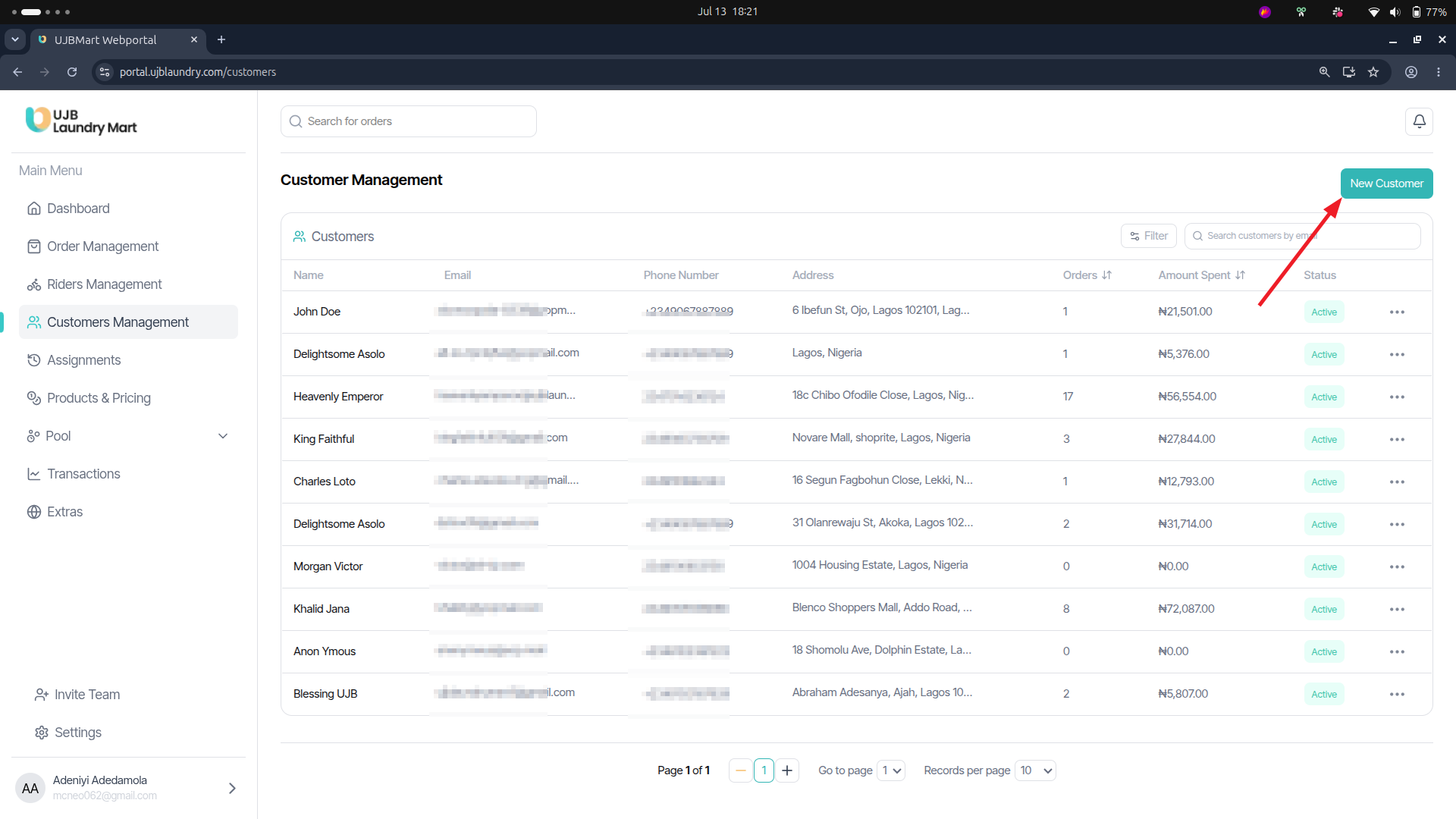
Navigate to the Customer Management page via the main side navigation menu.
-
Click the New Customer button situated at the top-right corner of the window.
-
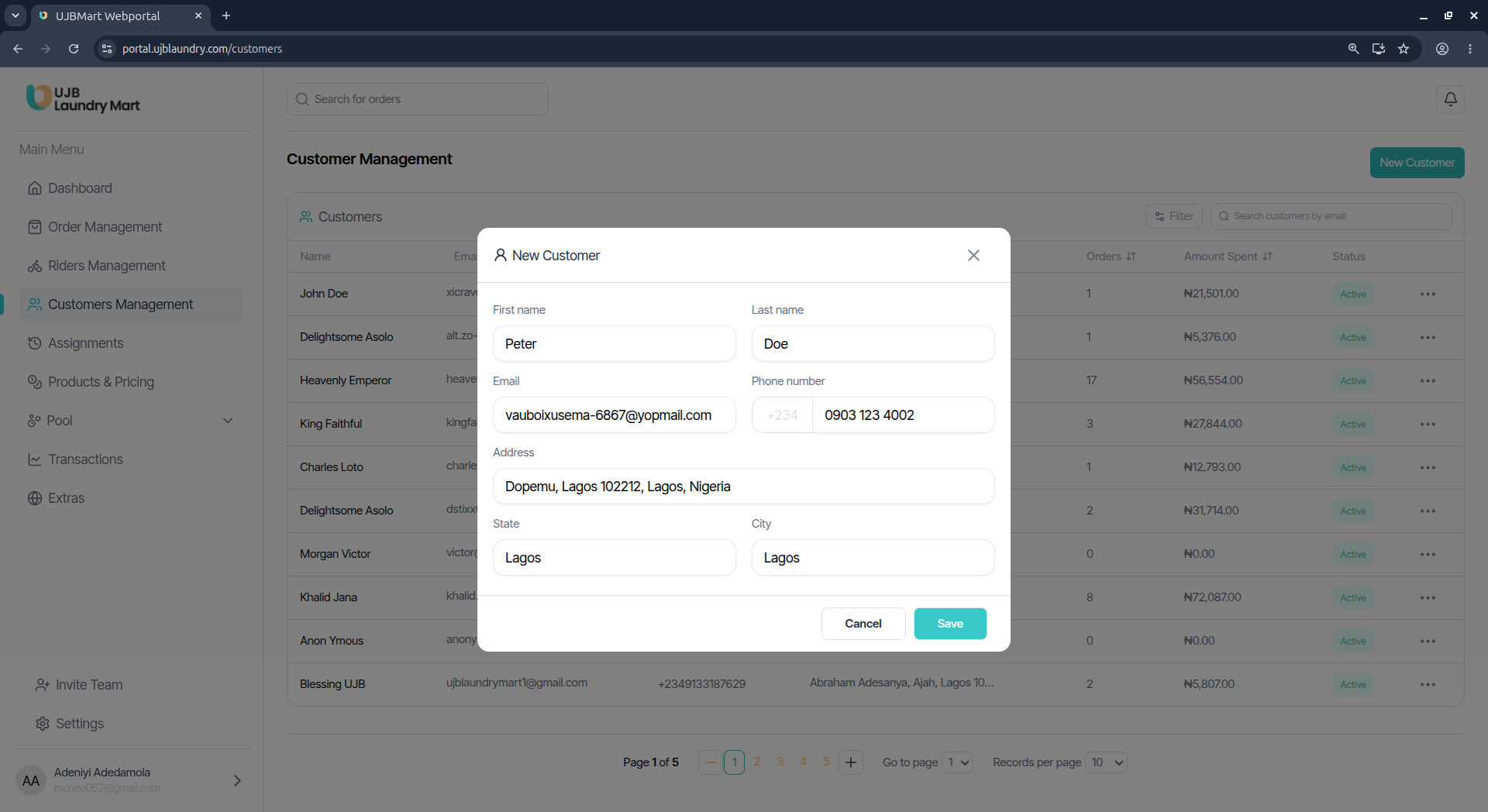
A New Customer configuration modal will display. Populate the mandatory input fields:
- First Name & Last Name
- Email & Phone Number
- Address
- State & City
-
Click Save to complete enrollment.
Managing Customer Accounts
Clicking the 3-dot action menu icon at the far right of any specific customer record launches a detail modal that allows you to review historical data and execute administrative actions.
1. Profile Verification & Summary
The entry page of the modal displays a snapshot of the account's context:
- Profile Indicators: Monitor their live account Status, cumulative Amount spent, Total orders processed, and exact Date joined.
- Contact Verification: Displays the verified primary Email, Phone number, and structural Address lines mapped to that identity.
2. Reviewing Customer Order History
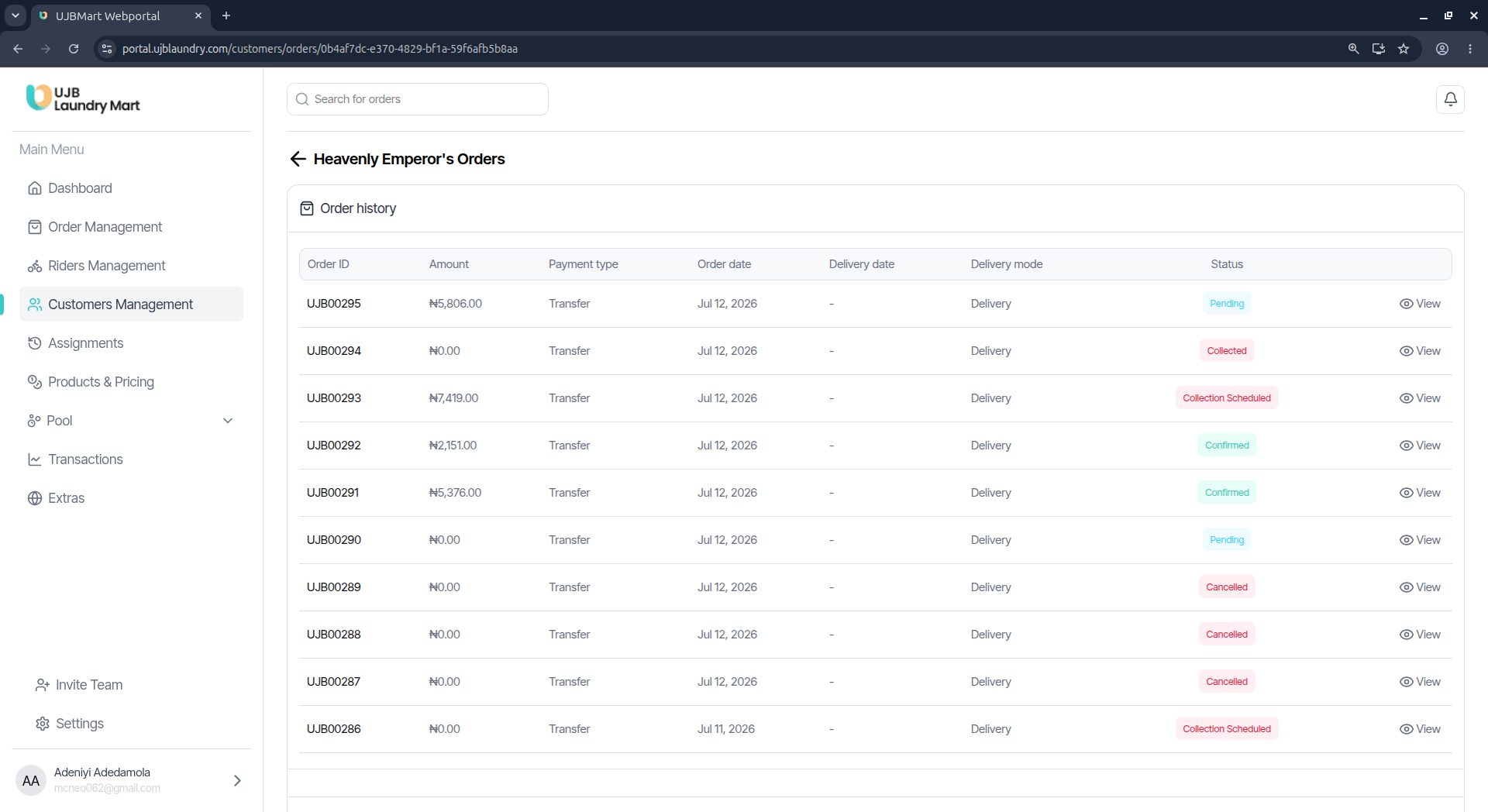
To audit the full historical lifecycle of transactions associated with an individual account:
-
Open the customer's detail overlay via the 3-dot menu.
-
Click the View Order History button.
-
The console will launch the dedicated Customer's Orders History sub-panel. This directory lists crucial parameters for every corresponding entry:
- Order ID
- Amount
- Payment
- Type (e.g., Transfer)
- Order Date
- Delivery Mode (e.g., Delivery)
- Status
-
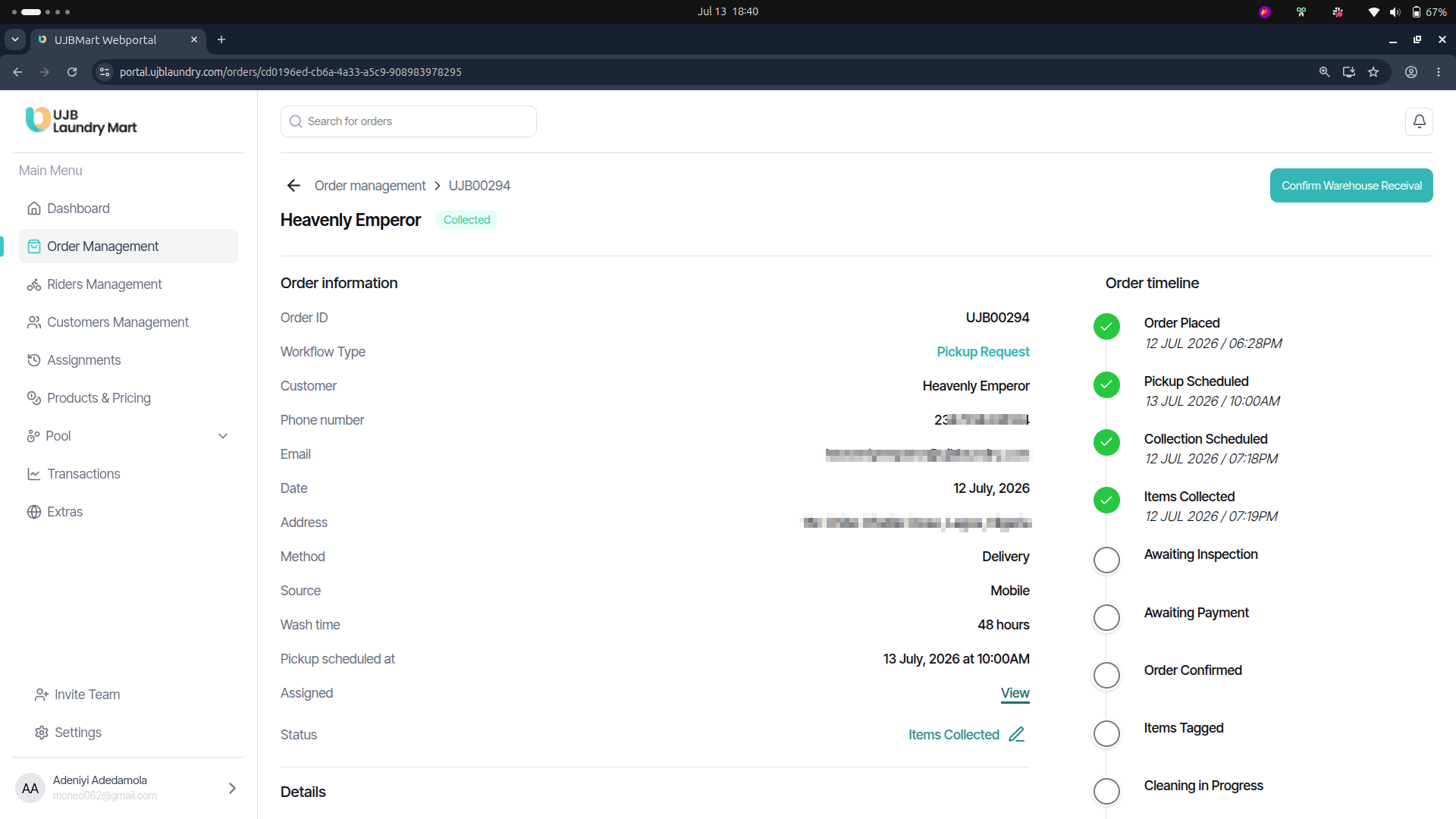
Granular Analysis: To drill deeper into a particular request timeline, click the View button at the far right of the selected order row. This redirects you to the live Order Management processing template containing structural details, assigned courier diagnostics, and the 12-step milestone pipeline.
3. Messaging Customers Directly
Admins can send communications directly to a customer's external inbox using the integrated mail gateway:
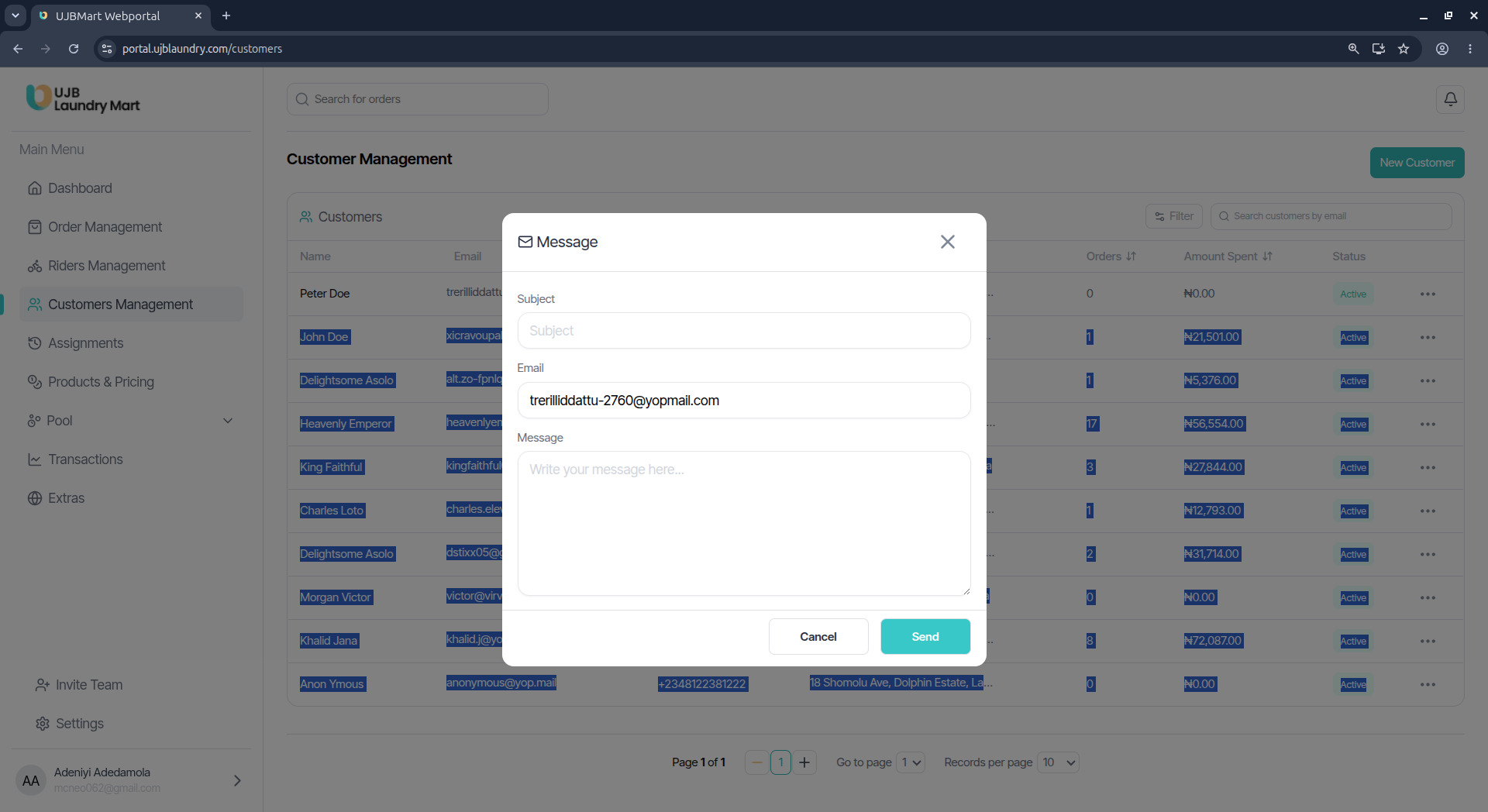
- From the customer's detailed action overlay, click the Send Message button.
- A Message modal will manifest, with the customer's registered destination Email address pre-filled.
- Type a precise Subject line, write your notice text body inside the Message field, and click Send.
4. Suspending & Restoring Accounts (Block/Unblock)
If a user violates platform policies, or if an account needs to be isolated for safety reasons, administrators can modify access privileges using the dashboard control options.
Suspending an Account (Blocking):
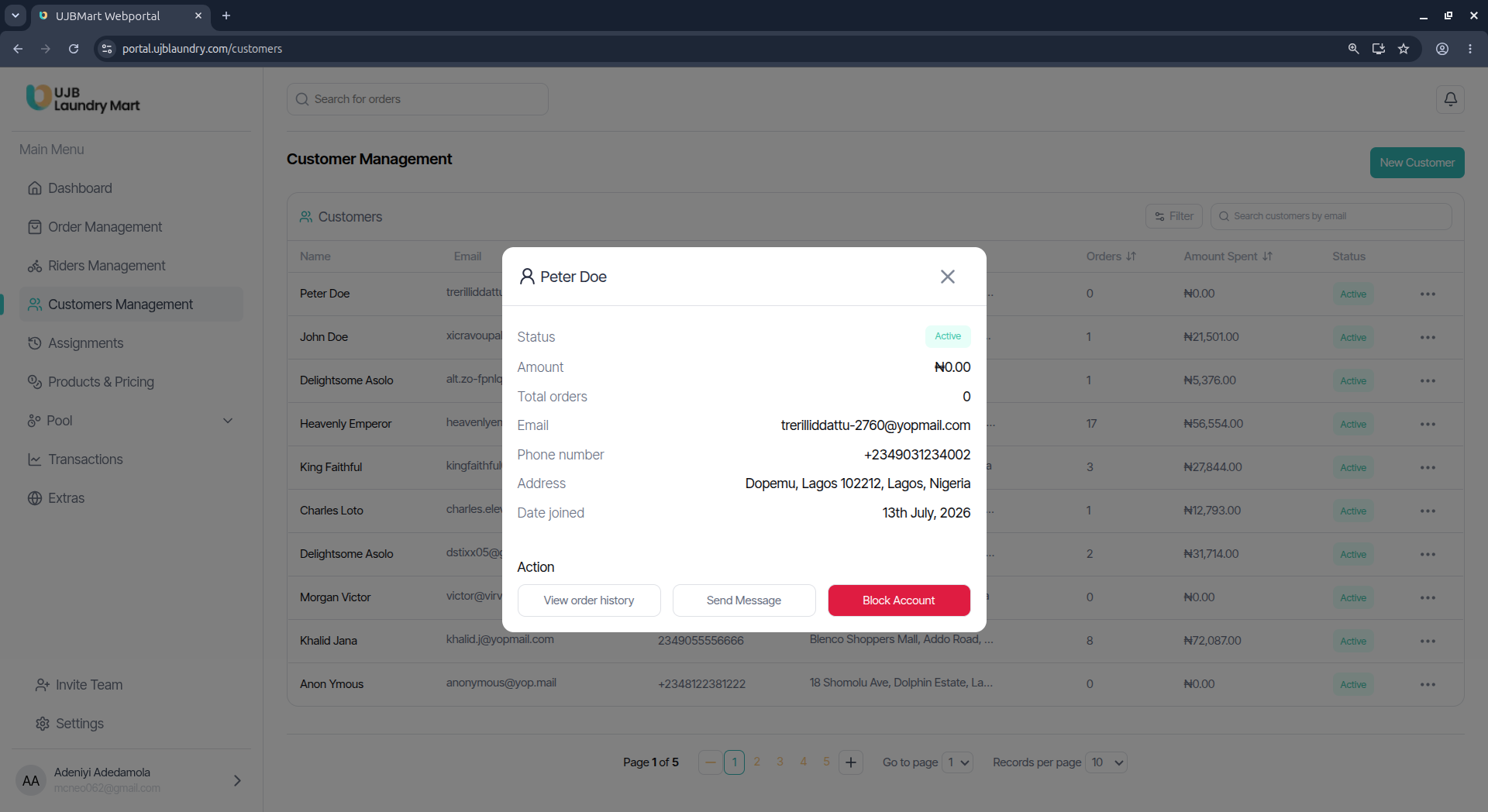
- Open the customer overlay via the 3-dot menu.
- Click the red Block Account button at the bottom of the form.
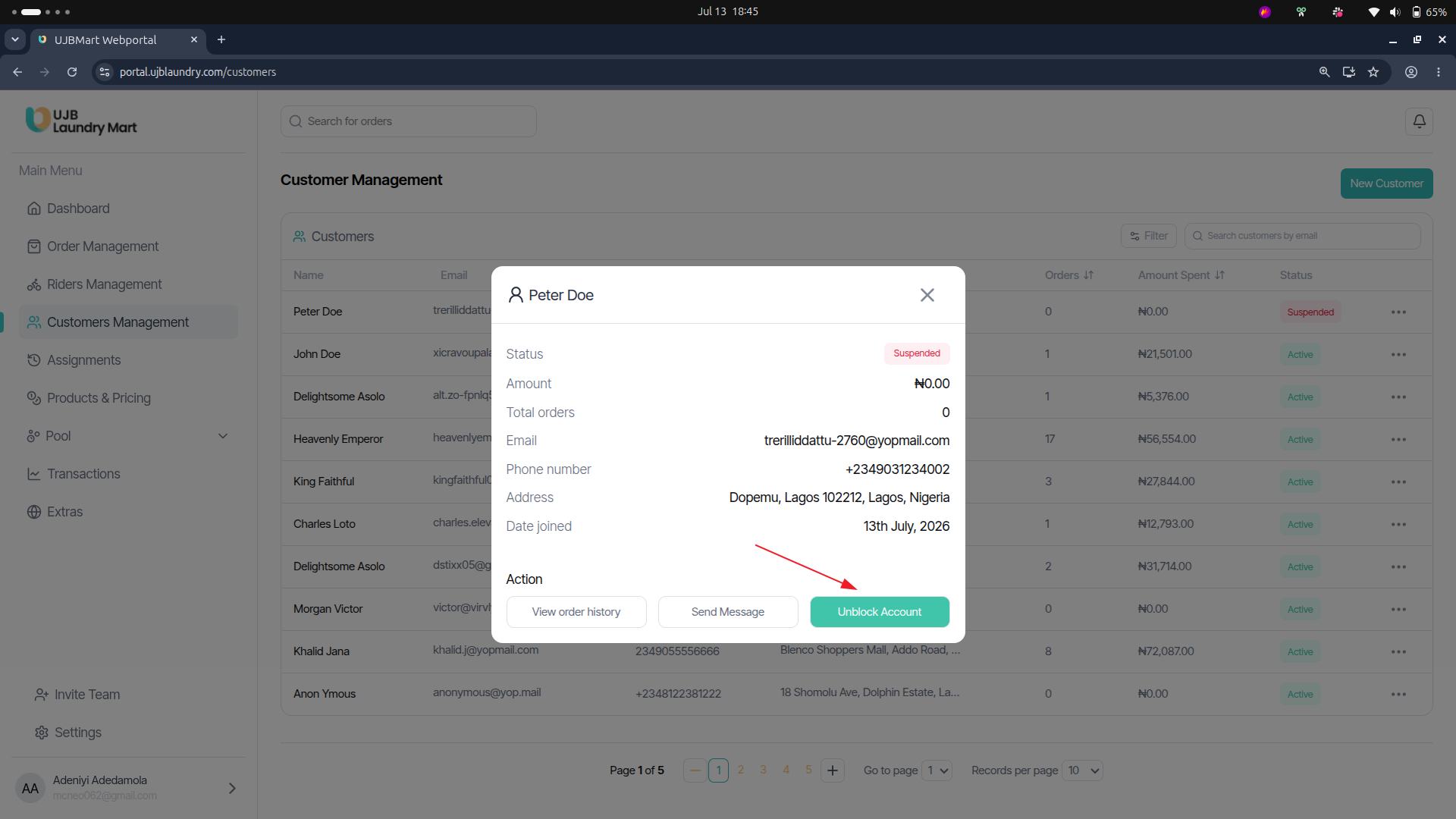
- Status Verification: To confirm the platform has correctly enforced the constraint, review the customer directory ledger. The user's Status tag will transition from a green indicator to a red Suspended label, and their internal status badge within the profile modal will mirror this update.

Restoring an Account (Unblocking):
- Click the 3-dot menu next to the target suspended customer profile.
- Locate the button at the base of the modal window, which has dynamically converted into a teal Unblock Account switch.
- Click Unblock Account to instantly restore full platform access and reset their profile standing back to Active.